Posts Tagged FACTORY RESET
Factory Reset Nortel IP Phone
Posted by Michael McNamara in Nortel, Uncategorized, VoiceOverIP on October 29, 2009
I know I’ve been asked this question quiet frequently and I finally got around to digging up the answer. Here are the details from the Nortel technical configuration guide with a few grammar changes and some formatting thrown in.
You can factory reset a Nortel IP phone that is already running UNIStim firmware release 3.0 or later. You will need to be running the following firmware at a minimum for this procedure to work;
IP 1110 (0623C6E), IP 1120E (0624C6E), IP 1140E (0625C6E), IP 1150E (0627C6E), IP 1210 (062AC6E), IP 1220 (062AC6E), IP 1230 (062AC6E), IP 2001 (0604DCD), IP 2002 (0604DCD), IP 2004 (0604DCD), and IP 2007 (0621C6D).
The UNIStim firmware release 3.0 for IP Phones introduces the ability to restore an IP Phone to a “factory default” configuration. This can be useful when redeploying an IP Phone from one location to another, when starting to use an IP Phone with unknown history, or to reset to a known baseline configuration.
With UNIStim firmware release 3.0, and greater, the following keypad sequence is used to reset all provisioning parameters to a “factory default”:
[*][*][7][3][6][3][9][MAC][#][#]
Where the MAC corresponds to the MAC address of the IP Phone which can be found on a label on the back of the IP Phone.
Since a MAC address can contain the letters A through F, the letters A, B and C can be entered via the [2] key on the dial pad, and letters D, E and F can be entered via the [3] key.
For example, an IP Phone with MAC address 00:19:E1:E2:17:12 would be reset to “factory default” when the sequence **73639001931321712## is entered on the keypad.
Cheers!
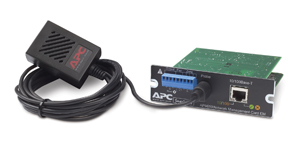
Recover lost password APC NetMgmt Card
Posted by Michael McNamara in APC on February 28, 2009
We deploy a lot of uninterruptible power supply units throughout our network. The deployment of VoIP has made those units even more important as we plan for power failure contingencies. Occasionally we find one or two that are miss-configured. Here are the steps to resetting the username and password of the APC network management cards. You’ll need to use a serial cable (2400,8,N,1) to attach to the UPS in order to reconfigure the management card.
Press ENTER, repeatedly if necessary, to display the User Name prompt. Press the Reset button on the back of the card. The Status LED will flash alternately orange and green. Press the Reset button a second time immediately while the LED is flashing to reset the user name and password to their defaults temporarily.
Then press ENTER as many times as necessary to redisplay the User Name prompt, then use the default, apc, for the user name and password. (If you take longer than 30 seconds to log on after the User Name prompt is redisplayed, you must repeat step 5 and log on again.)
You should immediately reconfigure the appropriate username and password (select System, then User Manager, select Administrator).
Cheers!
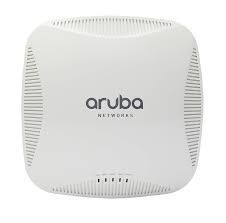
Factory Reset Motorola AP-5131
Posted by Michael McNamara in WirelessLANSwitch on May 20, 2008
The Motorola AP-5131 is a fully featured 802.11a/b/g wireless network access point that supports MESH networking.
I recently needed to reset one of these access points and thought it would be useful for anyone else looking for information on the subject.
Step 1. Serial up to the AP5131 with 19200-8-N-1
Step 2. Power cycle the AP5131
Step 3. Press the “Escape” key when the AP5131 states “Press escape key to run boot firmware”.
Step 4. From the “boot>” prompt enter “passwd default”.
Step 5. Reset the system by entering “reset system”.
The AP5131 should perform a full reset and end up at the login prompt after it has booted. The default administrator password is “symbol” (case sensitive).
Note: starting with firmware release 1.1.2.0-005R the AP51×1 password was changed to “motorola”.
Upon logging in for the first time the administrator should be prompted to change the password. The default administrator username is “admin”.
Note: the default IP address of the AP5131 is 192.168.0.1 and the DHCP server is enabled in the factory configuration so you should be able to connect your PC to the LAN port and then open a web browser to access the Admin GUI.
Cheers!
Nortel Business Ethernet Switch 110
Posted by Michael McNamara in BusinessEthrntSwitch on March 19, 2008
In June 2006 Nortel released a whole new line of class Ethernet Switches for small to medium sized businesses. While these switches don’t support the latest and greatest enterprise features they seem to be a very good value for those small businesses.
There are multiple models to choose from in both the 24port and 48port form factors, there are PoE (Power over Ethernet) models as well.
A full list of the models and there feature sets can be found here.
There are some re-occuring questions from folks that I thought I would post on;
What is the default username and password?
Username: nnadmin
Password: PlsChgMe!
How can I factory reset the switch or recover the password?
There is a reset button in the front of the switch depicted in the figure below as (2);
What is the default IP address of the switch?
The default IP address is 192.168.1.132 with a subnet mask of 255.255.255.0.
How can I login to the switch?
Just give your desktop or laptop a static IP address in the 192.168.1.0/24 network, connect your desktop or laptop to any of the RJ45 ports and open a web browser to http://192.168.1.132.
While I’m happy to post this information here let me just point out that all this information is in the documentation if you chose to RTFM.
Cheers!


RECENT COMMENTS