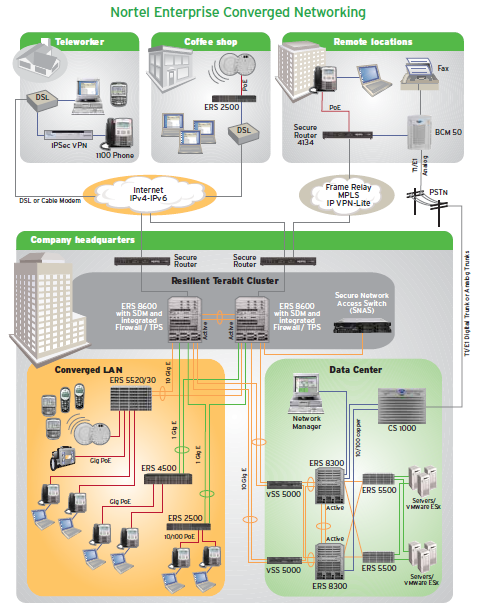
Nortel has released an updated Ethernet Switch matrix which I’ve uploaded to my site.
Cheers!
technology, networking, virtualization and IP telephony
There can be a few occasions where you may need to manually purge the local DNS cache and/or the actual web cache of a Blue Coat ProxySG appliance. While both the DNS cache and web cache will eventually age out it can be helpful to sometimes speed up the process by flushing/purging the DNS and web cache.
While this can all be done from the web interface I generally prefer the CLI (if available). The Blue Coat ProxySG appliances that I managed are setup for SSH access you may need to confirm that SSH is enabled (telnet might be enabled).
Let’s start by connecting to the BlueCoat ProxySG appliance (proxysg.acme.org);
[root@linuxhost etc]# ssh -l admin proxysg.acme.org
admin@proxysg.acme.org's password:

proxysg.acme.org - Blue Coat SG510 Series>
Once we’re connected we need to go into privledged mode to issue the commands;
proxysg.acme.org - Blue Coat SG510 Series>enable
Enable Password:
Now that we’re in privledged mode we can clear the web content cache with the following command;
proxysg.acme.org - Blue Coat SG510 Series#clear-cache
ok
And to clear the DNS cache we can use the following command;
proxysg.acme.org - Blue Coat SG510 Series#purge-dns-cache
ok
And don’t forget to logout when you’re all done.
proxysg.acme.org - Blue Coat SG510 Series#exit
Connection to proxysg.acme.org closed.
Cheers!
 I thought I would take a quick second to let everyone know that there are two RRS feeds for this blog. The first feed is for the articles that get posted while the second is for the comments made by readers like yourself and me. There are a lot of really helpful tips and information that can be found in the comments from some very insightful readers.
http://feeds.feedburner.com/michaelfmcnamara
http://feeds.feedburner.com/CommentsForMichaelFMcnamara
While there are approximately 50 readers subscribed to the main article RSS feed there is no one subscribed to the comments RSS feed.
Please feel free to comment on any article, especially if you think the article is incorrect and/or misleading. I’m also interested in soliciting information for future articles. What would you be interested in hear more about?
Thanks for reading!
Cheers!
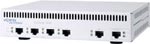 In this post I’ll provide an example of how to configure a Nortel VPN Router. We’ll configure the remote office VPN router for a tunnel with 3DES/SHA1 encryption and DH2 using pre-shared keys, routing all traffic to the main office across the tunnel (no split tunneling). You should start by connecting up to the local console port on the VPN router (the diskless 1100,1050,1010 require a special RJ45 -> DB9 console cable). Log into the VPN router with the default username of “admin” and the default password of “setup” and reset it to factory defaults. You’ll find the option under “R” for “Reset System to Factory Defaults”.
Welcome to the Contivity Secure IP Services Gateway
Copyright (c) 1999-2004 Nortel Networks, Inc.

Version:                 V05_00.136
Creation date:           Aug 20 2004, 15:50:15

Date:                    07/23/1980
Unit Serial Number:      11221

Please enter the administrator's user name: admin

Please enter the administrator's password:

Main Menu:  System is currently in NORMAL mode.
1) Interfaces
2) Administrator
3) Default Private Route Menu
4) Default Public Route Menu
5) Create A User Control Tunnel(IPsec) Profile
6) Restricted Management Mode       FALSE
7) Allow HTTP Management            TRUE
8) Firewall Options
9) Shutdown
B) System Boot Options
P) Configure Serial Port
C) Controlled Crash
L) Command Line Interface
R) Reset System to Factory Defaults
E) Exit, Save and Invoke Changes

Please select a menu choice (1 - 9,B,P,C,L,R,E):
The first step will be to configure the IP addressing for the private LAN and public WAN interfaces. Using the serial console select “L) Command Line Interface” from the menu options.
CES>
Upon entering the CLI environment the prompt will be changed to “CES>”. You must now enter privileged mode using the “enable” command entering the default admin password of “setup”.
CES>enable
Password: *********
Let’s take care of the easy stuff first. I’m currently working in the Eastern time zone;
CES#clock timezone est
CES#clock set 15:22:30 12 JANUARY 2005
You can discern from the syntax above that #clock set <hh:mm:ss> <day> <month> <year>
Now you must enter configuration mode using the commands listed below. We’ll reset the admin password before anything else.
CES#configure terminal
Enter configuration commands, one per line.  End with Ctrl/z.
CES(config)#
CES(config)#adminname admin password <standard password>
We’ll configure the private LAN IP Address. In the example below I’m using 10.2.203.1 as the LAN address of the branch office VPN router.
CES(config)#interface FastEthernet 0/1
CES(config-if)#ip address 10.2.203.1 255.255.255.0
CES(config-if)#exit
Next we’ll configure the MANAGEMENT IP Address. The LAN address and management IP address must be on the same subnet.
CES(config)#ip address 10.2.203.10
Management address set to 10.2.203.10 successfully !
Next, make sure Mgt addr and private LAN addr are on same subnet
CES(config)#
You should use the IP addressing that’s been assigned to the equipment your configuring in place of the IP addressing used above. Next we’ll assign the public WAN IP Address provided by the Internet Service Provider (ISP) which in this case happens to be Verizon DSL;
CES(config)#interface FastEthernet 1/1
CES(config-if)#ip address 70.256.1.10 255.255.255.0
%Warning: The IP address type is changed from DHCP dynamic to static
CES(config-if)#exit
CES(config)#ip default-network 70.256.1.1 public
CES(config)#ip name-server 151.197.0.38 151.197.0.39 199.45.32.43
NOTE: FastEthernet 0/1 is the PRIVATE LAN while FastEthernet 1/1 is the PUBLIC WAN
Let’s disable those services we won’t be using and enable those we will be using;
CES(config)#no tunnel protocol pptp public
CES(config)#no tunnel protocol pptp private
CES(config)#no tunnel protocol l2tp public
CES(config)#no tunnel protocol l2tp private
CES(config)#ipsec encryption 3des-sha1
CES(config)#ipsec encryption aes256-sha1
CES(config)#no ipsec encryption aes128-sha1
CES(config)#no ipsec encryption des40-md5
CES(config)#no ipsec encryption des40-sha1
CES(config)#no ipsec encryption des56-md5
CES(config)#no ipsec encryption des56-sha1
CES(config)#no ipsec encryption hmac-md5
CES(config)#no ipsec encryption hmac-sha1
Let’s configure the “Base” default Branch Office Group with the standard settings.
CES(config)#bo-group ipsec /Base
CES(config-bo_group/ipsec)#encryption 3des-sha1
CES(config-bo_group/ipsec)#encryption ike 3des-group2
CES(config-bo_group/ipsec)#antireplay enable
CES(config-bo_group/ipsec)#no compress
CES(config-bo_group/ipsec)#initial-contact enable
CES(config-bo_group/ipsec)#exit
Let’s add a designator for the local network (to be used later – replace with your IP network)
CES(config)#network add LocalNetwork ip 10.2.203.0 mask 255.255.255.0
Let’s add a sub group for our IPsec tunnel configuration;
CES(config)#bo-group add /Base/AcmeHealth
CES(config)#bo-conn add Acme-1 /Base/AcmeHealth
CES(config)#bo-conn Acme-1 /Base/AcmeHealth
CES(config/bo_conn)#conn-type peer2peer
CES(config/bo_conn)#local-endpoint 70.256.1.10
CES(config/bo_conn)#remote-endpoint 192.1.1.124
CES(config/bo_conn)#tunnel-type ipsec
CES(config/bo_conn)#ipsec authentication text-pre-shared-key password987
CES(config/bo_conn)#routing type static
CES(config/bo_conn)#state enable
CES(config/bo_conn)#routing static
CES(config/bo_conn/routing_static)#local-network LocalNetwork
CES(config/bo_conn/routing_static)#remote-network 0.0.0.0 mask 0.0.0.0 state enable cost 1
CES(config/bo_conn/routing_static)#exit
Let’s setup the DHCP relay agent forwarding our DHCP/BOOTP requests to 10.2.16.40;
CES(config)#no service dhcp enable
CES(config)#ip default-network 70.20.130.1 public
CES(config)#ip dhcp-relay 10.2.203.1
CES(config)#ip dhcp-relay 10.2.203.1 enable
CES(config)#ip helper-address 10.2.203.1 server 1 10.2.16.40
CES(config)#ip forward-protocol dhcp-relay
Since we’re routing everything over the IPSec tunnel (the remote-network was 0.0.0.0 with a mask of 0.0.0.0) we need to change the default route preference.
CES(config)#ip default-route-preference private private
That’s the short approach to using the CLI interface to configure the Nortel VPN Router. There is a somewhat old and slow web interface that you can also use to configure the VPN router. You only need to point a web browser to the mangement IP address.
Cheers!
Update: Wednesday December 10, 2008
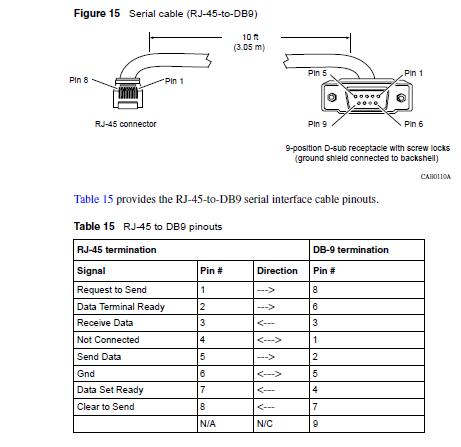
Here’s the pinout for the special RJ45 to DB9 serial cable used to access the diskless VPN routers;
Cheers!
While this isn’t generally within the realm of the topics that I discuss here I was impressed enough to give it a blurb. A few months ago I started playing around with a few of the different virtual desktop solutions available. I wasn’t really looking to spend any $$$ so I looked around at all the free and open source solutions. I stumbled across VirtualBox which had recently been acquired by Sun Microsystems and was very impressed. I had VirtualBox installed on a Windows XP desktop within minutes and had an Ubuntu 8.04 installation up and running in a virtual window within an hour.
On September 4, 2008 VirtualBox 2.0.0 was released. There’s suppose to be some significant performance increases in this release including support for SATA NCQ (Native Command Queuing) when using raw disks and Nested Paging on AMD machines. This release also promises support for 64 bit guest hosts. You can find the full change log here.
If you’re looking to toy with Linux, VirtualBox makes it really easy to install Linux on top of your existing Windows XP desktop/laptop without the worry of destroying your personal computer. While I still dual boot a number of my desktops/laptops I’ve been finding VirtualBox almost indispensable in my daily work activities. There are even a number of organizations running VirtualBox as a Virtual Desktop Infrastructure (VDI) solution from a number of different thin clients.
You might even be persuaded to load up a virtual machine to check out an upcoming clone of Microsoft Windows called ReactOS. It’s not based on Linux in any fashion but promises to be compatible with all software that can run on Microsoft Windows. While it’s still in it’s infancy (alpha) it will be interesting to see how Microsoft will respond if it ever starts to gather steam.
VirtualBox is definitely worth the time and effort to download and install if your interested in a virtual desktop solution.
Cheers!